The Ultimate Guide to Sprite Sheets in 2D Game Development
1. The Anatomy of a Sprite Sheet
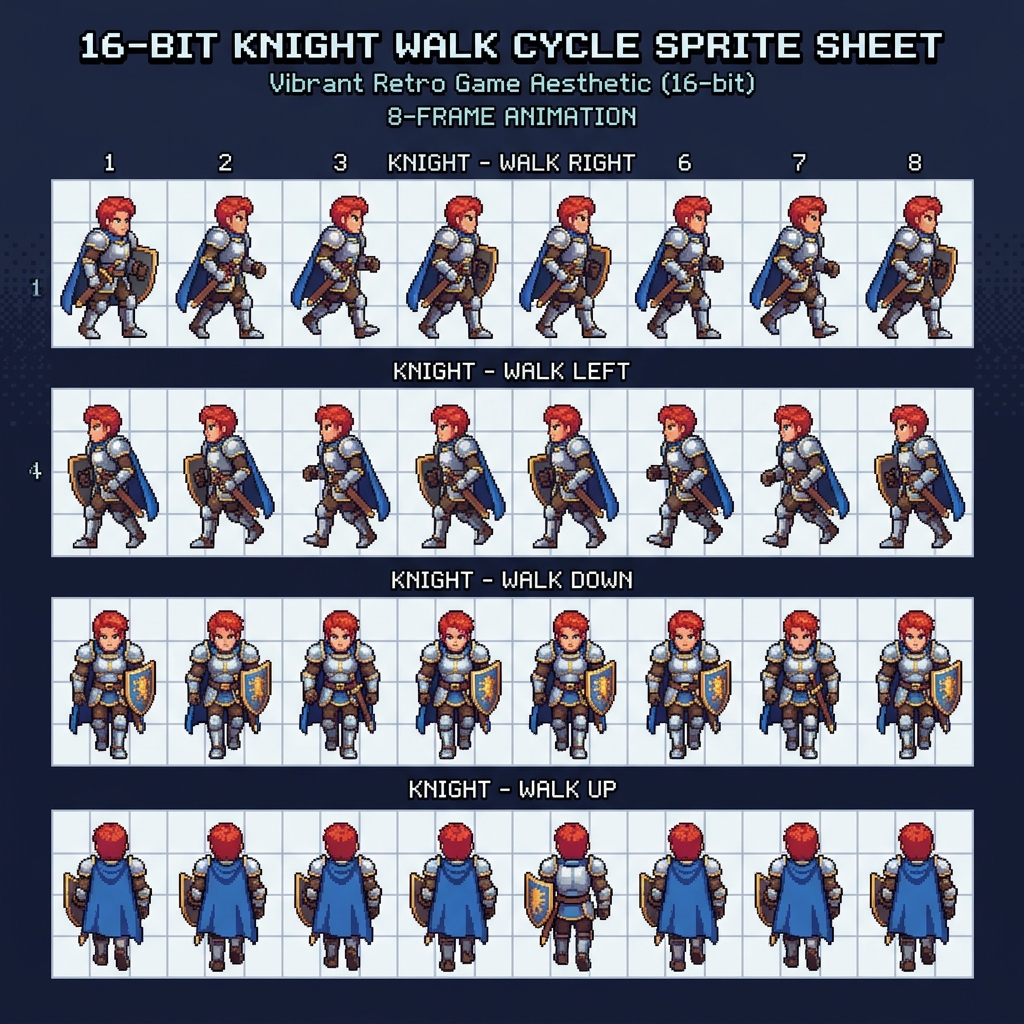
A sprite sheet is a single image file that contains multiple smaller images (sprites) arranged in a grid or packed tightly together. Instead of loading hundreds of individual image files for every character animation, enemy, and prop in a game, developers use a single sprite sheet. This drastically reduces the number of file requests and memory overhead, resulting in smoother gameplay and faster load times.
2. The Technical Necessity: Texture Batching
In modern game engines like Unity, Godot, and GameMaker Studio, rendering performance is crucial. When the GPU needs to draw an object, switching between different textures (image files) is an expensive operation called a 'draw call'. By combining all textures into a single sprite sheet, the GPU can draw multiple objects using just one draw call. This optimization technique is called 'texture batching'.
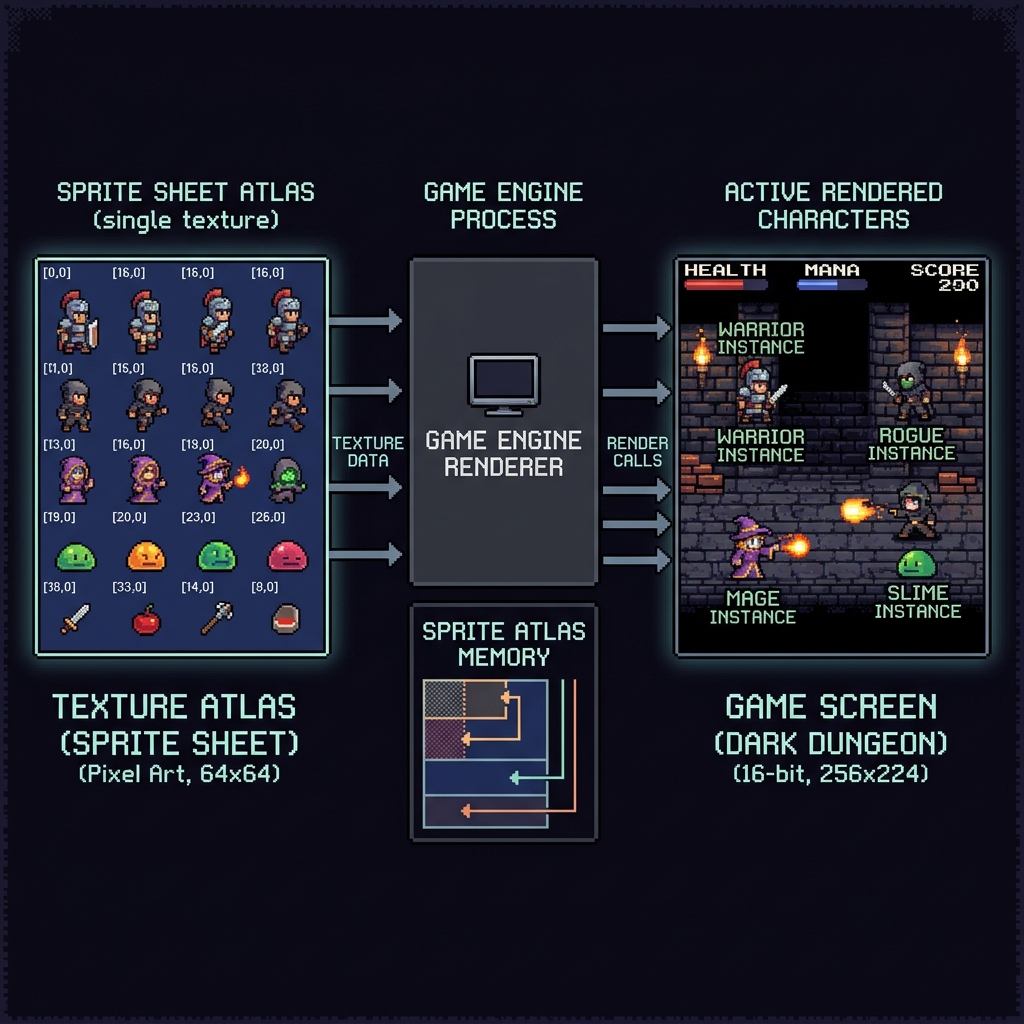
Furthermore, sprite sheets ensure that animations are kept perfectly synchronized. Since all frames of a walk cycle or attack animation are in the same file, you never have to worry about missing files, corrupted loading sequences, or inconsistent loading times between frames. A 60 FPS animation requires perfect memory access, and a continuous block of memory provided by a sprite sheet guarantees this.
3. Fixed Grid vs Texture Packing (Atlas)
Not all sprite sheets are created equal. A 'Fixed Grid' sprite sheet divides the image into perfectly equal squares (e.g., 32x32 pixels per cell). This is incredibly easy to parse and animate. However, if a character swings a massive sword in one frame, the entire grid must be large enough to accommodate that sword, resulting in thousands of wasted, transparent pixels in the other frames.
To solve this, developers use 'Texture Packing'. This algorithm takes individual images of varying sizes and packs them as tightly as possible into a single image, called a 'Texture Atlas'. A companion data file (like JSON or XML) is generated alongside it, telling the game engine exactly where the X and Y coordinates of every frame are located, stripping away all wasted transparent space and drastically reducing file size.
4. How to Extract Frames from a Sprite Sheet
While sprite sheets are great for game engines, they can be difficult to edit or view. If you download a massive sprite sheet from a marketplace like Itch.io or OpenGameArt, you might just want a single frame for an avatar, a presentation, or to edit a specific animation frame in Photoshop.
This is where tools like our Sprite Splitter come in handy. By specifying the number of columns and rows, or the exact pixel dimensions of a cell, you can instantly slice a massive sprite sheet back into its individual PNG frames directly in your browser.